
Modern video games demand a lot from your system. Large open worlds, high-resolution textures, frequent auto-saves, and background services can quickly expose weaknesses in memory (RAM) and hard drive storage. When something goes wrong, the symptoms often show up as crashes, stuttering, long load times, or corrupted save files. This article walks through practical steps to identify and fix common memory and hard drive issues that affect games.
“The right man in the wrong place can make all the difference in the world.” — Half-Life 2
Common Symptoms to Watch For
Before troubleshooting, it helps to recognize the signs:
- Sudden crashes or freezes during gameplay
- Severe frame drops or stuttering, especially in busy scenes
- Long loading times or textures popping in late
- “Out of memory” or disk read/write errors
- Corrupted or missing save files
If you see one or more of these, memory or storage is a likely culprit.
Troubleshooting Memory (RAM) Issues
1. Check RAM Usage While Gaming
Open Task Manager (Windows) or Activity Monitor (macOS) while the game is running. If memory usage is near 100%, your system may be running out of RAM.
2. Close Background Applications
Browsers, launchers, overlays, and streaming software can consume large amounts of memory. Close anything not essential before launching the game.
3. Lower In-Game Settings
High-resolution textures, long draw distances, and advanced effects often increase RAM usage. Reducing these settings can stabilize performance.
4. Update Drivers and the Game
Memory leaks are sometimes caused by bugs. Updating your graphics drivers and installing the latest game patches can resolve unexplained RAM spikes.
5. Test Your RAM
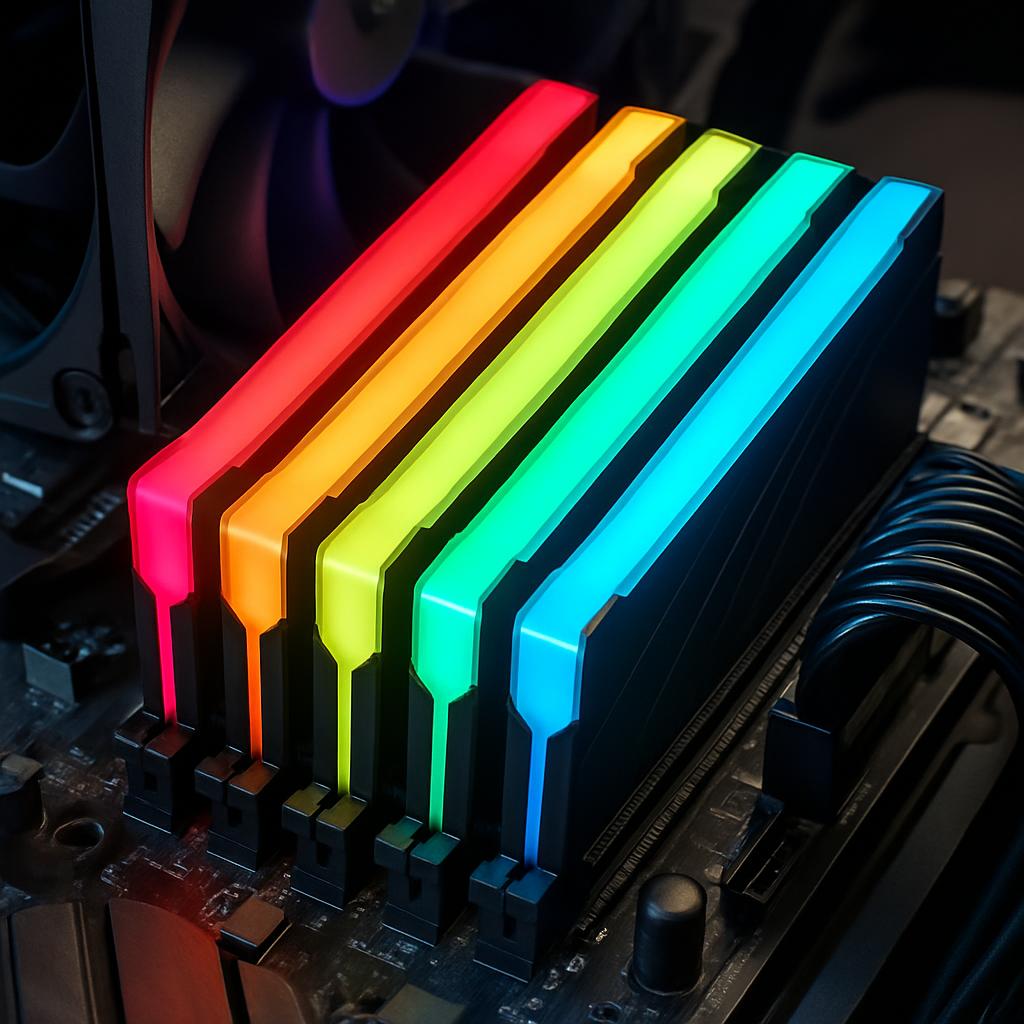
Use built-in tools like Windows Memory Diagnostic or third-party utilities to check for faulty memory. Bad RAM can cause random crashes that are hard to diagnose.
Troubleshooting Hard Drive and Storage Issues
1. Check Available Disk Space
Games need free space not just to install, but also for patches, shaders, and temporary files. Aim to keep at least 15–20% of your drive free.
2. Verify Game Files
Most platforms (Steam, Epic, console systems) offer a “verify” or “repair” option. This scans for missing or corrupted files and re-downloads them.
3. Monitor Drive Health
Use disk health tools (SMART monitoring software) to check for bad sectors or failing drives. Frequent read errors are a red flag.
4. Defragment or Optimize (HDD Only)
If you’re using a traditional hard drive, fragmentation can slow load times. Defragment the drive.
Note: Do not defragment SSDs—use the system’s built-in optimization instead.
5. Consider Upgrading to an SSD
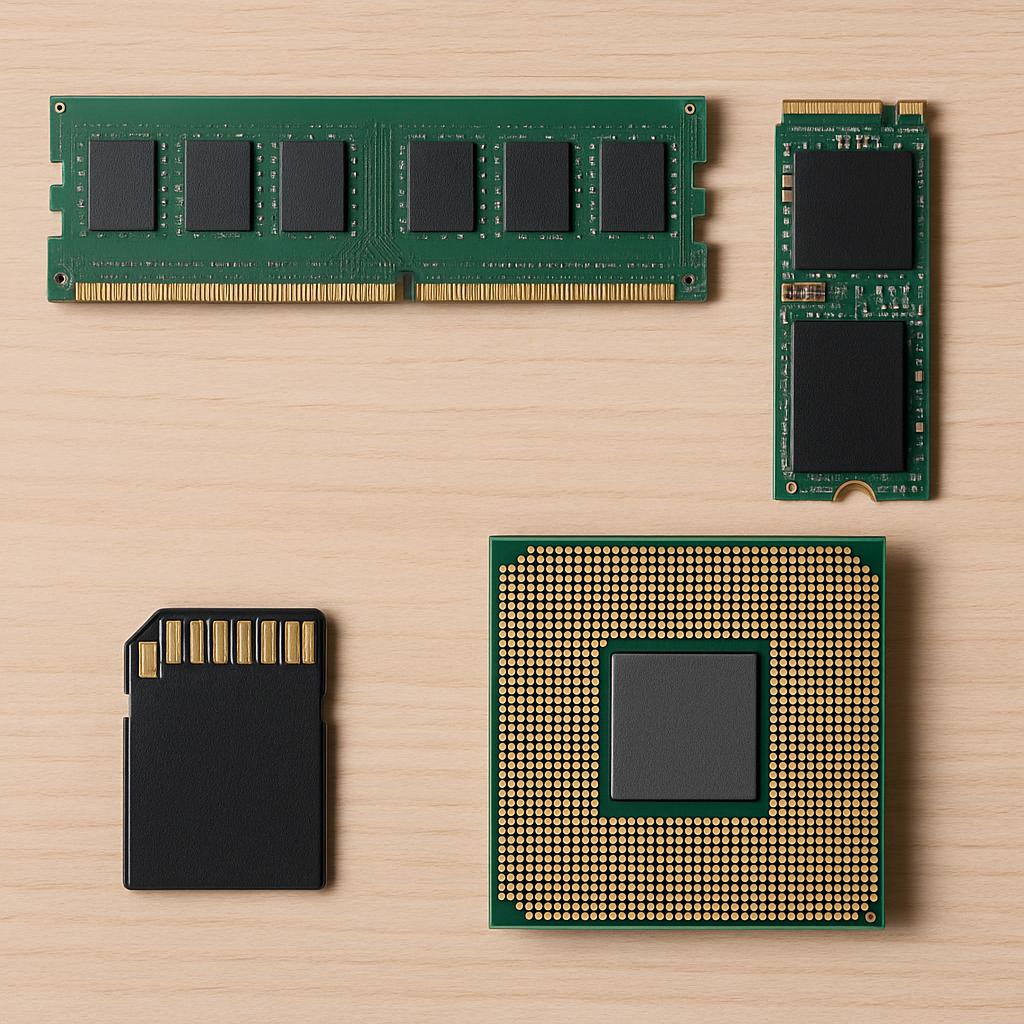
Many modern games are designed with SSDs in mind. Upgrading from an HDD to an SSD can dramatically reduce load times and streaming issues.
When Software Isn’t the Problem
If issues persist after optimization, hardware limitations may be the cause. Older systems with low RAM capacity or aging hard drives may struggle with newer titles. As one famous game quote puts it:
“The right man in the wrong place can make all the difference in the world.” — Half-Life 2
In gaming terms, even good software can fail if it’s running in the wrong hardware environment.
Wrapping Up with Key Insights
Troubleshooting memory and hard drive issues in video games is about observation, testing, and gradual optimization. By monitoring RAM usage, managing background applications, maintaining healthy storage, and keeping software up to date, you can eliminate many common performance problems. When all else fails, upgrading hardware—especially RAM or moving to an SSD—can be the difference between constant frustration and smooth, immersive gameplay.